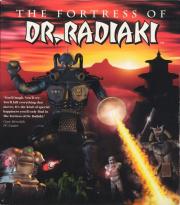
The Fortress of Dr. Radiaki Version 1.0
Technical Reference Guide

Installation
CD-ROM Version
To install The Fortress of Dr. Radiaki onto your hard drive, place the CD-
ROM disc into your CD-ROM drive and log onto that drive.  For
example, if you placed the disc in drive D: you would type:

d: [ENTER]
install [ENTER]

Then, follow the on-screen directions for completing the CD-ROM
installation.

Note: The default CD-ROM installation for The Fortress of Dr. Radiaki is
a Partial install which copies a startup batch file, the install.exe, and
configuration files to your hard drive.  Users with slower processors,
however, may prefer to choose the Full install option for increased game
performance, especially when loading game levels.  The Full install
option copies all of the contents of the The Fortress of Dr. Radiaki  CD-
ROM onto your hard drive.  To select this install option, use the Enter key
to change the type of install parameter from Partial to Full at the Install
Game menu, and then select the Install Now option.

Sound Configuration
After the hard disk installation is completed, you should return to the
Main Menu and select the Configure Sound option.  Choose the
Autodetect Sound Configuration option from the Sound Configuration
Menu  to set up your music and sound configuration automatically.  After
the program has detected your sound card and determined the optimum
configuration, the parameters for your sound card are displayed at the top
of the screen.  You may now return to the Main Menu and select the Exit
and save changes option. The next time you play The Fortress of Dr.
Radiaki, the program will default to these sound configuration settings.

Note:  Some users may choose to configure their music and sound card
settings manually.  To do so, first select the Configure Music option from
the Sound Configuration menu.  You will be prompted to select the name
of your music sound card and your card's port address.  Next, your should
choose the Configure Digital Audio option.  You will be prompted to
select the name of your digital audio sound card, and you will be asked to
select  your card's IRQ, Base Address, and DMA channel settings.  After
you configure your music and digital audio settings, these settings are
displayed at the top of the screen.  Return to the Main Menu and select
the Exit and save changes option. The next time you play The Fortress of
Dr. Radiaki, the program will default to these sound configuration
settings.

Additional Notes: If you you do not save your sound configuration, the
game will not work properly.

 If you wish to modify your sound configuration after the initial
installation, simply run INSTALL.EXE from the The Fortress of Dr.
Radiaki subdirectory on your hard drive.

 If you are not sure which IRQ, Base Address and DMA channel settings
are right for your sound card, please run the test program that came with
your sound card.


Not Enough Low DOS Memory?
If you do not have 580,000 bytes (550K) of low DOS memory available
when you launch The Fortress of Dr. Radiaki, you should use the
MAKEDISK.BAT utility included with The Fortress of Dr. Radiaki to
create a "boot disk" which will boot up your system but will bypass "CPU-
hogging" TSR's that are part of your hard-drive's auto-execution
sequence.

The MAKEDISK.BAT utility is located in the root of the The Fortress of
Dr. Radiaki subdirectory on your hard drive.  To create a boot disk,
simply put a blank formatted or unformatted floppy disk in drive A:.
Make sure you are in the The Fortress of Dr. Radiaki subdirectory on your
hard drive, and type: makedisk. MAKEDISK.BAT will format the floppy
disk in drive A: and will copy the necessary system information  for
making the disk self-bootable.   When this step is completed, the message,
Format another? Y/N will appear.  Be sure to answer N for No.  At this
point, MAKEDISK will copy the appropriate AUTOEXEC.BAT and
CONFIG.SYS files.
.Note: You must edit one of the startup files on your boot disk to include a
line which loads your mouse driver, as The Fortress of Dr. Radiaki
requires a mouse.

Starting the Game
To start The Fortress of Dr. Radiaki once it is installed, select the drive
partition which contains The Fortress of Dr. Radiaki subdirectory
(Example C:); then type the following:

cd\radiaki [ENTER]
radiaki [ENTER]


IMPORTANT INFORMATION FOR CD-ROM USERS:  If you are
running The Fortress of Dr. Radiaki on a system with 8 Megs of RAM
and you encounter this error message:
Fatal - Cannot allocate initial buffer
this means that you are not allocating enough memory in order to run the
game.  The easiest solution to this problem is to modify SMARTdrive,
one of the largest memory-consuming utilities on your system.

Option 1: Temporarily disable SMARTdrive.
You can temporarily disable SMARTdrive in your AUTOEXEC.BAT file.
To disable SMARTdrive, use any text editor to edit your
AUTOEXEC.BAT file.  Type REM prior to the line that loads
SMARTdrive, save your AUTOEXEC.BAT file, reboot your computer,
and load the game.  Example:

	REM C:\DOS\SMARTDRV.EXE

Option 2: Configure SMARTdrive to consume less memory
You can reduce the SMARTdrive memory allocation to 512K.  Please
consult your Windows users documentation for directions.


DoubleSpace and Stacker Users

The 3.5" Floppy Version of The Fortress of Dr. Radiaki is compatible
with disk compression utilities such as DoubleSpace and Stacker,
however, it is recommended that you use a clean CONFIG.SYS, either by
making a boot disk or by editing the CONFIG.SYS file on your hard
drive.  Below is an example of a clean CONFIG.SYS that will work for
almost all systems with or without disk compression:

DEVICE=C:\DOS\HIMEM.SYS
DOS=HIGH,UMB
DEVICE=C:\STACKER\STACKER.COM C:\STACVOL.DSK
{Example using Stacker}
DEVICE=C:\STACKER\SSWAP\SSWAP.COM C:\STACVOL.DSK
/SYNC {       "           "          "     }
DEVICE=C:\PROAUDIO\MVSOUND.SYS D:3 Q:7 J:0 T:1	{Example
using ProAudio Spectrum}

Note: This example CONFIG.SYS does not include a line which loads a
mouse driver.  If you wish to run the game with a mouse, be sure to add a
line in your CONFIG.SYS which loads your mouse driver.


Using Disk Compression Utilites and AWE32

The game will not run properly on a system using DoubleSpace (or
Stacker) and an AWE32 audio card.  The combination of  disk
compression and the AWE32 audio drivers consumes roughly 90K of
base memory  (DoubleSpace requires 43K and the AWE32 drivers require
roughly 45K), thus dropping base memory below the 550K required to
run the game.  The only way to run the program with an AWE32 on such
a system is to install the game on an uncompressed drive and ensure that
the disk compression drivers are not loaded at startup.

Troubleshooting
1. Problem: The music and/or sound does not play or plays incorrectly.
 Solution: Check the settings in the INSTALL.EXE program.  Make sure
your settings match your audio card.

2. Problem: The game becomes erratic or locks up during play on a
system configured with a Sound Blaster or compatible audio card.
Solution: Add the SET BLASTER option to your AUTOEXEC.BAT file.
Example:

SET BLASTER=A220 I5 D1 H5 P330 T6

A??? -  Replace with address of your sound card.  Usually 220
I?       -  Replace with IRQ setting of your sound card.  Usually 5
D?     -  Replace with DMA setting of your sound card.  Usually 1
H?     -  Replace with high DMA setting of your sound card.  Usually 5
(16Bit Only)
P???  -  Replace with MIDI port setting of your sound card.  Usually 330
              (Only for cards with MIDI support)
T?      -  Replace with Type of card.  Usually 6  (Refer to your sound card
manual)

Customer Service
If you are experiencing difficulties with The Fortress of Dr. Radiaki and
you are a registered user, you may call our technical support department
for assistance at (214) 385-2957.  A technician will be available to help
you between the hours of 10:00am and 5:00pm Central Time, Monday
through Friday.

We welcome your questions, comments, or other feedback regarding The
Fortress of Dr. Radiaki or any of our other products. You may write to us
at:

Merit Software
13707 Gamma Road
Dallas, Texas 75244

On-Line Support Via CompuServe

For on-line support of The Fortress of Dr. Radiaki via CompuServe, call
800-848-8199 and ask for Representative 321 to get your FREE
introductory membership and $15 usage credit. If you are already a
member of CompuServe, type the command GO GAMAPUB at any !
prompt to get Merit Software's support section, or contact our technical
support department at ID# 76711,247.

What is CompuServe?
CompuServe is the world's largest international network of personal
computer users (1.2 million+ members worldwide) and has over 1,400
products and services to choose from. You can talk directly to software
publishers, download free software, and get the latest news and sports of
interest with a personal clipping service. Check out the weather forecast
with Accu-Weather maps. Plan, schedule and book your own flights; do
your own research with an on-line encyclopedia; and look at the latest up-
to-the-minute stock reports. Utilize international electronic mail
capabilities, software support and much, much more.


The Fortress of Dr. Radiaki User's Guide

CREDITS

Designed by 					G.P. Austin
						Edwin Herrell
						Joel Manners

Programmed by					Edwin Herrell

Art by						David Lawell
						Jake Rodgers

Original Design					G.P. Austin
						Joel Manners

Level Design					G.P. Austin
						Joel Manners

Music						Midian
						Zorch!
Productions

Digital Effects					Midian
						Zorch!
Productions

Additional Programming				Tim Little

Additional Level Design				Anthony Nichols
						Chris Cayce

Additional Art					Joel Manners
						Chad Woyewodzic
						Dave Norton

Script						G.P. Austin

Produced and Directed by				G.P.Austin
						Edwin Herrell
						Joel Manners

Voices
	Narrator					G.P. Austin
	Mecho One
	Mecho Two
	Mecho Three
	Mecho Comrade
	Dr. Radiaki
	Rattok
	Rat Man
	Samurai

	Toasterhead				Edwin Herrell
	Second Robot
	Junior

	Ninja					Joel Manners
	Red Ninja

	Alligator Man				David Lawell
						Joel Manners

	Shogun					Marcos Campos
	Cuban
	Stormtrooper

User's Guide					Joel Manners

Executive Producer				M. Lee Jacobson

Beta Testers					Patrick Griffith
						Nadine Kent
						Tom Lima
						Mickey Shaw

Music and Sound Drivers				Human Machine Interfaces, Inc.


(c)  Future Visionary, Inc.  Future Vision and The Fortress of Dr. Radiaki
are registered trademarks of Future Visonary Inc.  All Rights Reserved.
All other trade names or trademarks are the property of their respective
owners.


CONTENTS

Mission Briefing
Main Menu
Options
Game Commands
Movement
Firing Weapons
Other Commands
Doors/Levers
Items
Winning


MISSION BRIEFING

	You are awakened from a sound sleep by a distant ringing.

	Instantly alert, every muscle tensed and rippling, you leap from
the belfry of St. Steven's Church and, grabbing a convenient flagpole,
slide down to the payphone on the streetcorner below.  You snatch the
receiver from its cradle and listen to the voice on the other end of the line.

	"Excuse me, sir, do you have a match?"

	"Yes, I think I do."

	"Could you light my cigarette?"

	"Not over the phone."

	"Unless you had really long arms."  The voice at the other end of
the line pauses.  "Want to see my butterfly collection?"

	Your mouth twists into a snarl as you complete the code phrase.
"'I'd rather see you frolic through the tawny wood in a tutu.'  Enough with
that cloak and dagger crap, what's this all about, Henderson?"

	"That's United Nations Secretary General Henderson to you,
Special Agent Banner."

	"Yeah, yeah...You woke me up from a sound sleep just to renew
our acquaintance?"

	"We've got a situation on our hands, Banner.  Some crackpot is
threatening to unreash nucrear destluction on the world."

	"Nucrear Destluction?"

	"That's how you spelled it in your blackmail note."  Henderson's
voice assumes a somber tone, which he usually reserves for special crises,
like earthquakes and weddings.  "The anonymous blackmailer wants one
billion dollars to stay yourhand."

	"That must be some hand.  Any idea who the blackmailer might
be?"

	"Of the one hundred people in the world capable of constructing
nuclear warheads, ninety-nine of them have been located at their
designated chalkboards.  Only one is missing...an eccentric Japanese
household appliance magnate, Dr. Niko Radiaki."

	"Radiaki Toasters, Radiaki Vacuum Cleaners, Radiaki
Refrigerators, that Radiaki?"

	"The same.  He owns an island in the Pacific.  Recently we
detected radioactive waste in the water, waste which we traced back to his
island.  That's where we want you to begin your assignment.  Track down
Radiaki, find out whether he's responsible and deactivate his Doomsday
Weapon, not necessarily in that order."

	"Great.  I always wanted an island vacation."

	"I have a captured alien craft standing by to drop you on the
island."

	"No thanks.  Call me old-fashioned, but I'd rather be shot out of a
torpedo tube naked, armed with only a baseball bat."

	"Suit yourself."

	The buzz of a dead line drones in your ear.  You have your
assignment.  The only question is, are you man enough to complete it?
You peek under your foot jammies.  Yes sir...you believe you are...

	Scaling the ivy covered walls to your lair twelve stories above the
sleeping city, you steel yourself for the ordeal ahead...

MAIN MENU
You can reach the Main Menu by either of two ways; you will always
enter the Main Menu when you have finished viewing the introduction,
and you can enter it at any time while playing by pressing ESC.  The only
difference is that if there is an active game, you will be able to select Save
Game, and if you are viewing the Main Menu over the Title Screen, you
will not be able to select Save Game.

In either case, the Main Menu will function in the same way.  You can
move the cursor up and down the list of options by pressing the up and
down arrows.  When you have positioned the cursor next to the option you
wish to activate, you will press Enter. If you are in the middle of an active
game, you can leave the menu by pressing ESC.

NEW
When you select New Game you will activate a brand new game, starting
on level 1, with a brand new player.  You will not retain any items or
weapons that you had obtained in previous games, nor will you retain
whatever progress you had made through the fortress.

LOAD
When you select Load Game from the menu, you will be presented with a
list of save game files from which to choose.  You can activate a saved
game by simply typing the number of the slot in which the game is saved.
When a saved game is loaded, it will overwrite any game currently in
memory.

SAVE
If you are in the middle of an active game, you may save your progress
and your inventory by selecting Save Game.  When you select Save Game,
you will be presented with a list of available save game slots.  To pick a
slot, you simply type the number of the slot you wish to use.  If a slot is
already in use, this will be indicated.  You can overwrite a used slot by
picking that slot for your new saved game.

OPTIONS
When you select Options, you will be presented with a list of game
options to modify.  To change an option,  you position the arrow cursor
next to the option you wish to change.  You may then cycle through your
choices for a given option by pressing the right arrow key.  Once the
options are all set to your specifications, you can press ESC to drop you
back into the Main Menu.

Music
You can choose to turn the game music on or off.

Sound
You can choose to turn the game sound effects on or off.

Music Volume
You can adjust the volume of the music which plays during the game
from here.  The music volume is on a scale from one to ten, one being the
quietest.

Sound Volume
You can adjust the volume of the sound effects which play during the
game from here, in the same manner as the music volume.

Difficulty Level
You can choose the difficulty level of your next game.  There are three
difficulty levels: Easy, Medium, and Hard.  Changing the difficulty level
will change the number and location of enemies in the game.  If you wish
to change the difficulty level, you will then have to start a new game to
have the new difficulty level.  If you simply resume play by pressing ESC
from the Main Menu, the Difficulty Level will be reset to its previous
setting.

Hazing Level
You can adjust the game's hazing level to suit your monitor.  There are
three hazing levels, the default level is the darkest, and each other level is
one stage lighter.

Floor Detail
You can choose the detail level of the floor and ceiling texture maps. The
lower the detail level, the faster the frame rate, but the textures will start
to look slightly out of focus.

Wall Detail
You can choose the detail level of the walls, see above.

Mouse Sensitivity
You can adjust the level of mouse sensitivity to suit your system.  There
are three levels available: High, Medium, and Low.

QUIT
When you want to leave the game, you should select Quit, which will send
you to a DOS prompt.  Your current game will be lost when you do this,
so you should take care to save your game before selecting Quit.

GAME COMMANDS
PLAYER INTERFACE
Your Interface provides you with all of the information you will need
while in the game to keep track of your current inventory, your health,
your active weapon and your weapon inventory.  Your interface is made
up of four separate parts:

Key Inventory
This section shows you which keys you have at the present time.
Whenever you pick up a key, it is graphically shown in this section, and
whenever you lose a key, it is removed from this section.  You will be able
to determine what color keys you have, as well as whether or not your key
is temporary or permanent by looking here.

Health
This section shows you how close to dying you are.  It is made up of two
sections, the EKG read-out, and a simple percentage read-out.  The EKG
display keeps track of your heart-beat, the peaks growing smaller and
closer together the closer to death you get.  When the EKG flatlines, you
are either very nearly dead or very really dead.  The percentage read-out
shows you in exact detail how close you are to death.  You start out with
100% health.  If you ever reach 0% you are dead.

Active Weapon
This section keeps track of all you need to know about whatever weapon
you have chosen to use.  It is divided into three subsections.  The first
shows graphically which weapon is active.  The second shows what type
of ammunition the weapon will use when it is fired.  The third section
shows how many shots are left in the weapon's clip and how many shots a
full clip will contain when you re-load your weapon.

Weapon / Ammunition Inventory
This section keeps track of all the weapons and ammunition you are
carrying.  The ammunition is listed on the left, in the four boxes which
correspond with the four different types of ammunition in the game.  Each
ammunition box has a graphic representation of the ammunition type
(bullets, grenades, flame bursts, and power cells) next to a fraction
showing the number of shots of that type of ammunition you are carrying
over the total number of shots you could carry.  Bullets are used by the
Pistol and the Machine Gun, Grenades are used by the Grenade Launcher,
Flame bursts are used by the Flamethrower, and the Power Cells are used
by .... well, you will just have to find out. On the right are listed the types
of weapons you are carrying.  Each weapon has its own box, listed 2-7.  If
you have a  weapon of that type, the box displays the number, if you do
not have a weapon of that type, the box stays blank.
2: Sword
3: Pistol
4: Machine-Gun
5: Grenade Launcher
6: Flame Thrower
7: Mystery Weapon

The number one weapon is the Baseball Bat, which you always have, and
which is always available.  You will also always have available the
number three weapon, the Pistol.

MOVEMENT
You can move about the game using either the mouse or the keyboard.

Mouse Controls
To move, you have merely to press and hold down the left mouse button
and slide the mouse in the direction you wish to move.  If you slide the
mouse forward, you will move forward.  If you slide the mouse to the right
or left, you will rotate right or left, respectively.  If you slide the mouse
backwards, you will move backwards. The further you slide the mouse,
the faster the movement in that direction will be.  If you wish to stop the
movement, you simply let up on the left mouse button.  When you let go
of the left mouse button, your movement is re-centered, meaning that you
do not have to manually recenter your mouse on the mouse pad by rolling
it back to the middle.

Keyboard Controls
To move, you can use the arrow keys.  The up arrow will cause you to
move forward at the fastest rate possible, the left and right arrows will
cause you to rotate left and right, respectively,  and the down arrow will
cause you to move backward.  If  you hold down two keys at the same
time, both movements will occur simultaneously.  Holding down the ALT
key while moving will speed up whatever movement is occuring.

FIRING WEAPONS
You can fire your active weapon using either the mouse or the keyboard.

Mouse Control
To fire the active weapon, you press the right mouse button.  If you hold
down the right mouse button, the active weapon will fire at its maximum
rate until you are out of ammunition.

Keyboard Control
To fire the active weapon, you press the Shift key.  If you hold down the
Shift key, the active weapon will fire at its maximum rate until you are
out of ammunition.

OTHER COMMANDS
1 - 7: Pressing the number keys will activate the weapon associated with
that number, but only if you have picked up a weapon of that type.

SPACE: Pressing the space bar will reload the active weapon from the
ammunition in your inventory.  Each weapon has a different clip size, and
you should watch the amount of ammunition left in your current clip
closely.  Reloading takes a short amount of time, but could prove fatal in
the middle of a surprise attack. Reload before entering a room!

M: Pressing the M key will activate the automap screen.  You will be able
to see the map showing where you have walked in the current level.  Only
those areas through which you have already walked will be shown.  The
map will be centered on your position, represented by a small yellow
diamond.  The direction you are facing will be indicated by a small red
dot next to your diamond.  Doors and levers will be shown in red,
windows in blue, and the up and down access tubes as yellow arrows.  To
exit the automap screen, you will press M a second time.

ESC: Pressing the ESC key will activate the Main Menu, pausing the
game.

CTRL: Pressing the Control key will activate doors, levers and access
tubes, and will unlock doors (see below).

DOORS / LEVERS
As you move around the game world, you will encounter many doors and
levers which must be opened to allow further progress through the world.
Both the doors and the levers are activated by pressing the Control key.
To open a door or to throw a lever, you must be facing the door or lever,
and be quite close to it.  Many of the doors throughout the game are
locked, and will not open when you try to activate them.  These doors are
either key-locked, meaning that you must have the correspondingly
colored key in your inventory to unlock the door, or are lever activated,
meaning that there is a lever somewhere in the game that must be thrown
to open the door.  Once you have thrown the correct lever, the door will
open immediately, and remain open until the lever is thrown again.
When you try to open a locked door without the proper key, a sound effect
will play, signifying the door's locked status. If the door is key-locked, and
you have the correct key, pressing the  Control key once while standing in
front of the door will unlock it, turning the door into a normal door,
which may now be opened and closed normally.

ITEMS
Scattered throughout the game are many items which you can pick up to
help you through the game.  These items are all picked up by running
over them.  If you cannot carry more of that item (e.g., you cannot carry
more bullets and you run over an Ammo Clip) then the item will remain
on the floor.  If the item will put you over your limit, then the item is
picked up, you are put at your limit, and any extra is lost.  In  addition to
the following list, there are some other mystery items which you will
encounter in the Fortress.  These items can be picked up in exactly the
same way as all the items, but their effects are left to you to discover.

Herbal Pouch
Description:  This item resembles a small brown bag.  In it are ancient
healing herbs that will help you restore any lost health points.
Effect:  The Herbal Pouch will restore 10 health points.

Medicine Bag
Description:  This item is a traditional black doctor's bag, stocked with
medicines and bandages to help heal you.
Effect: The Medicine Bag will restore 25 health points.

Syringe
Description: This item is a small syringe, filled with a powerful pain
killer.  It will allow you to ignore your wounds.
Effect: The Syringe will restore 5 health points.

Ammo-Clip
Description:  This item is a small clip of bullets, ready to be added to your
ammunition supply.
Effect:  The Ammo-Clip will add 6 bullets to your inventory.

Ammo-Crate
Description:  This item is a large wooden crate, full of bullets.
Effect: The Ammo-Crate will add 50 bullets to your inventory.

Grenade
Description: This item is a small green grenade.
Effect:  The Grenade will add one grenade to your inventory.

Grenade-Crate
Description:  This item is a large wooden crate, full of grenades.
Effect:  The Grenade-Crate will add 10 grenades to your inventory.

Napalm Tank
Description: This item is a small gray compressed gas tank, full of
napalm, ready to be used with the flame-thrower.
Effect: The Napalm Tank will add 2 flame bursts to your inventory.

Power Cell
Description:  The Power Cell is a large blue battery whose purpose will be
revealed during the game.
Effect:  ?

Sword
Description: The Sword is a traditional Samurai's Katana which you can
find around the Fortress.
Effect: The Sword will add the Katana to your inventory, allowing you to
use it in battle.

Machine Gun
Description:  The Machine Gun is a classic gangster's Tommy Gun.
Effect:  The Machine Gun will add itself to your inventory, allowing you
to use it in battle.

Grenade Launcher
Description:  The Grenade Launcher is a wide-barreled gun, ready to hurl
explosive death!
Effect: The Grenade Launcher will add itself to your inventory, allowing
you to use it in battle.

Flame Thrower
Description:  The Flame Thrower is a high-pressure flaming death
distributor.
Effect:  The Flame Thrower will add itself to your inventory, allowing you
to use it in battle.

Keys
Description:  The keys in the game come in may different colors, and in
two distinct shapes.  The smaller shaped keys are merely temporary keys,
cut to fit only locks of that color on that level. The larger shaped keys are
master keys, cut to fit that color lock on every level.  You will be able to
keep these master keys in your inventory as you travel from level to level,
while the temporary keys you throw away, as they are useless on any other
level.

Effect:  The Key will add itself to your inventory, allowing you to open
that color of locked doors on that level.  If you pick up a permanent key of
the same color, it will replace the temporary key of its color in your
inventory.

Codes
Description:  The Code is a piece of paper with the combination to that
level's combination lock doors written on it.  Like the keys, there are
master codes, which will work on any combination lock in the Fortress,
and temporary codes, which are only good on the level on which they
were found.
Effect:  The Code will add itself to your inventory, allowing you to open
combination lock doors on that level.  If you pick up a master code, it will
replace any temporary code you already possess.

WINNING
FINISHING A LEVEL
To progress through the game, you will have to fight your way through
each level to the access tube leading up to the next level.  This task is
made more difficult by the many guards and locked areas in each level.
The locked areas will, in many cases, have to be entered to obtain items
necessary to win, or may actually contain the access tube up.  Once you
have located the access tube, you can enter the next level by approaching
the access tube and pressing the Control key while facing it.  You do not
have to kill anyone to complete the level if you choose not to, nor are you
required to pick up the items throughout the level, it is merely highly
recommended.  You also do not have to enter every locked area, as many
are not crucial to your progress to the next level.  However, many of the
most powerful weapons are hidden behind locked doors.

You are also allowed to descend a level if you wish, allowing you to
search for additional ammunition,  health or weapons that you cannot find
on higher levels.  To descend a level, you should locate the down access
tube (located where you first entered the level) and activate it in the same
manner as the up access tube.

Once you have finished a level (by activating the up access tube) you will
be presented with an animated sequence.  You may press the Space Bar to
progress through the sequence, or the ESC key to exit the sequence
entirely.

FINISHING THE GAME
To win the game, you must enter the Fortress and ascend through it to the
very top level, where you must confront Dr. Radiaki and destroy the
Ultimate Weapon, thus saving the world from atomic destruction.

MERIT STUDIOS
PROGRAM AND LICENSE AGREEMENT AND LIMITED WARRANTY
CAREFULLY READ ALL THE TERMS AND CONDITIONS OF THIS AGREEMENT PRIOR TO
USING THE PROGRAM RECORDED ON THE DISKETTES OR CD'S. OPERATING THIS
PROGRAM INDICATES YOUR ACCEPTANCE OF THESE TERMS AND CONDITIONS.

1. COPYRIGHT:  THESE PROGRAMS AND THE RELATED DOCUMENTATION ARE
COPYRIGHTED. YOU MAY NOT USE, COPY, MODIFY, OR TRANSFER THE PROGRAMS OR
DOCUMENTATION, OR ANY COPY THEREOF EXCEPT AS EXPRESSLY PROVIDED IN THIS
AGREEMENT.

2. LICENSE: You have the non-exclusive right to use any enclosed program only
on a single computer. You may load the program into your computer's temporary
memory (RAM). You may physically transfer the program from one computer to
another provided that the program is used on only one computer at a time. You
may modify or translate the program providing such modification or translation
is for your own use and that no more than one such modified or translated copy
exists at any one time. You may not electronically transfer or access the
program from another computer over a network. You may not distribute copies
of the program or accompanying documentation to others. You may not decompile,
disassemble, or reverse engineer the program. You may not attempt to unlock or
bypass any copyprotection utilized with the program. Title to the programs and
all other rights and uses not specifically granted in this license are reserved
by MERIT STUDIOS.

3. BACK-UP AND TRANSFER You may make one (1) copy of the program solely for
back-up purposes. You must reproduce and include the copyright notice on the
back-up copy. You may transfer and license the product to another party only
if the other party agrees to the terms and conditions of this Agreement and
completes and returns a registration card to MERIT STUDIOS. If you transfer
the program you must at the same time transfer the documentation and back-up
copy or transfer the documentation and destroy the back-up copy.

4. TERMS: This license is effective until terminated. You may terminate it by
destroying the program and documentation and all copies thereof. This license
will also terminate if you fail to comply with any term or condition of this
Agreement.  You agree upon such termination to destroy all copies of the
program and documentation.

5. PROGRAM DISCLAIMERS: The programs are provided "AS IS" without Warranty of
any kind, either expressed or implied, including, but not limited to, the
implied warranties of merchantability and fitness for a particular purpose.
The entire risk as to the results and performance of any program is assumed by
you.  Should the program prove defective, you (and not MERIT STUDIOS or its
dealers) assume the entire cost of all necessary servicing, repair or
correction.  Further, MERIT STUDIOS does not warrant, guarantee or make any
representations regarding the use of, or the results of the use of, the program
in terms of suitability, accuracy, reliability, currentness, or otherwise; and
you rely on the program and results solely at your own risk.

6. MEDIA LIMITED WARRANTY: MERIT STUDIOS warrants to the original licensee
that the media on which the program is recorded shall be free from defects in
material and workmanship only for a period of ninety (90) days from the date of
original purchase. If a defect covered by this warranty occurs during this
90-day warranty period, and it is returned to MERIT STUDIOS no later than five
(5) days after the end of such 90 day period, MERIT STUDIOS shall either
replace or repair the product. At the end of the expiration MERIT STUDIOS will
replace or repair your purchase for $5.

The above warranty is exclusive and in lieu of all other conditions and
warranties, express or implied, including, but not limited to implied
conditions or warranties of merchantability or fitness for a particular purpose
and those arising by statute or otherwise in law or from a course of dealing or
trade. To the extent such statutes or laws prohibit the exclusion of such
implied warranties they shall be limited to a period of 90 days from the date
of your original purchase. No conditions or warranties, either expressed or
implied will apply after this period.

7. LIMITATION OF LIABILITY: MERIT Studios' liability is limited solely to the
repair or replacement of the defective product, in its sole discretion, and
shall not in any event include damages for loss of use or loss of anticipated
profits or benefits or other incidental or consequential costs, expenses or
damages, including without limitation, any data or information which may be
lost or rendered inaccurate, even if MERIT STUDIOS has been advised of the
possibility of such damages.

Some states do not allow an exclusion of implied warranty or limitation of
incidental or consequential damages, so the above limitations or exclusions
may not apply to you. This warranty gives you specific legal rights, and you
may also have other rights which vary from state to state.

8. MISCELLANEOUS: This agreement represents the entire understanding regarding
the programs and related documentation, and supersedes any prior purchase
order, communications or representations. This agreement may only be modified
by a written amendment signed by an officer of MERIT STUDIOS. If any provision
of the agreement shall be deemed unlawful, void, or for any reason,
unenforceable it shall be deemed severable from, and shall in no way affect
the validity and enforceability of the remaining provisions of the agreement.

This license agreement shall be governed by the laws of the United States of
America, State of Texas.

If this product is being acquired for or on behalf of the United States of
America, its agencies and/or instrumentalities, it is provided with RESTRICTED
RIGHTS, and all use, duplication, or disclosure with respect to the included
software and documentation is subject to the restrictions set forth in The
Rights in Technical Data and Computer Software clause at 252.227-7013 of the
DOD FAR and the Rights in Data-General clause at 52.227-14 of the FAR.

Unless otherwise indicated, the manufacturer/integrator is Merit Studios,
13707 Gamma Road, Dallas, TX  75244.

9. The program License Agreement shall inure to the benefit of Merit Studios,
its parent, and all affiliated companies thereof.

Merit Studios and the Merit logos are trademarks of Merit Software, Inc.