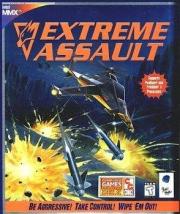
Frequently Asked Questions

Technical Problems

Gameplay Questions

General Questions

General Help for Extreme Assault in MS-DOS®

General Help for Extreme Assault in Windows® 95

Reporting Errors to Blue Byte


                             Technical Problems


Problems with the CD ROM drive

     "NO EXTREME ASSAULT CD found" even when I have the CD in the
     drive.

   * If you are running the game from MS-DOS® (version 5.x or 6.x), this
     will happen if you do not have any CD ROM drivers loaded in your
     startup files. With the advent of Windows® 95, a lot of hardware
     manufacturers no longer supply DOS real mode drivers with their
     machines. If you call either the manufacturer of your computer or your
     CD ROM drive, you should be able to obtain DOS drivers for your CD ROM
     drive.

   * If you are running the game in Windows® 95, then this could indicate a
     fault with the CD ROM drive or the CD ROM drive setup in Windows® 95.
     To check this, go into Device Manager (START\SETTINGS\SYSTEM) and go
     into the properties of your CD ROM drive. In the General section there
     is a device status that should say 'This device is working properly'.
     If it says anything different, call either the manufacturer of your
     computer or your CD ROM drive.

   * The letter designating your CD ROM drive must be the next letter in
     the alphabet after the letter designating your hard drive where the
     game is installed. For example, if the game is installed on the C:
     drive then the CD must be in the D: drive. It's not possible to
     install a CD-burner or a RAM-disk between the drive and computer
     designations.


Sound Problems

     Error message:
     " SOUND_Init_sound_system:: AIL
     INIT:: Cannot init sound system"

   * This error will occur if you setup your sound card in Windows® 95 and
     then tried to play the game in DOS with no sound card drivers loaded.
     To fix this problem, call the manufacturer of your sound card and
     obtain some DOS drivers for your sound card.

   * Sound problems will very likely occur if the game is installed and
     setup using one of the operating systems (Win 95 or DOS), and then
     played under the other. This occurs because the DMA and IRQ values
     assigned to the card can be different under DOS and WIN 95. This can
     be fixed by choosing your operating system, restarting the sound
     setup, and then playing the game under the same operating system.

     Sound cannot be setup properly and subsequent attempts to start
     game in DOS crash.

   * Many sound cards need to be setup by special drivers and commands in
     the autoexec and config files. If these files are missing, then the
     sound card may not be setup correctly and this may cause Extreme
     Assault to crash during startup. Please check with the sound card
     manufacturer to see which drivers need to be loaded.

     Sound becomes jumpy under Windows® 95.

   * Restart the game after restarting Windows® 95.

   * This can also be caused by the IRQ and DMA settings of sound card not
     being known by the BIOS setup, as used by an ISA bus. This only occurs
     on machines with PCI boards. To cure the problem you may need to edit
     the BIOS settings, and inform the BIOS that those values are in use by
     an ISA card. Please refer to your computer manufacturer for
     instructions on how to do this.

     Problems with Ensoniq Sound Scape sound cards.

   * Use the sound card in Sound Blaster emulation mode. This will fix the
     problem.


Graphics and VESA problems

     When the game starts I get a blank screen with music and sound
     effects in the background.

   * This occurs when the graphics resolution utility has not been run. The
     game is trying to run using a resolution that your graphics card
     cannot handle. To resolve the problem, run the graphics resolution
     test from the game's setup screen so that the game knows which screen
     resolutions your graphics card can handle.

   * If you have performed the graphics resolution utility and are running
     Windows® 95, shut down the machine and restart it in DOS mode. If the
     game then runs fine, you will need to contact the manufacturer of your
     graphics card for the latest Windows® 95 drivers.

   * If you are running any graphics utilities such as Display Doctor,
     disable them and then run the graphics resolution utility. Once you
     have done this try loading the game again.

     Why is there a high resolution and a low resolution selected in
     the resolution setup screen?

   * This is so you can easily switch between hi-res and lo-res while
     playing the game without going back to the Options Menu. To switch
     between hi-res and lo-res during the game press the F5 key.

     Vesa Driver Problems

   * First make sure you have the very latest video and vesa drivers from
     the manufacturer of your video card. In almost every case it is a
     problem with not having the absolute latest vesa driver. You can also
     try to using the universal vesa driver available on the Internet.

   * If you are using a newer version of the UniVbe driver, anything after
     version 5.1, try the following switch while loading the driver:
     uvconfig -L0 -V (this disables the linear frame buffer). If this does
     not work, try using an older driver. Some problems have been reported
     with the newer version of this program.

     Graphics problems with Matrox Millenium graphics cards.

   * If you own a Matrox video card please contact Matrox to get the latest
     flash BIOS upgrade on disk (currently version 2.70). You can also get
     it electronically from CompuServe on their ftp site at ftp.matrox.com
     in the /pub/mga/millennium directory.

     Graphics problems with the Stingray 128/3D.

   * The Stingray 128/3D is likewise having difficulties with the game. The
     next release of the BIOS and drivers should fix this problem.

     Graphics problems with 3Dfx on Orchid Righteous 3D.

   * Type "set SST_SCREENREFRESH=60" at the DOS-prompt.


Controller Problems

     Cannot change any of the control actions in the controls setup
     screen.

   * To change any of the keyboard/joystick functions in the controls setup
     screen, Customize must be selected as the control type at the top of
     the screen.

     Can only change 12 of the options in the controls setup screen.

   * There is an arrow pointing downwards in the bottom left hand corner of
     the screen. If you click on this arrow it will reveal more options
     that you can change.

     I have a ThrustMaster joystick and have chosen 4 button joystick
     from the controls setup, but the game won't recognize my Hat
     Switch.

   * The game has been coded to directly support the ThrustMaster
     joysticks. You will find a ThrustMaster option when you choose your
     joystick. If you choose this option and then configure the joystick,
     your Hat Switch will be recognized.

     Joystick isn't detected in DOS mode.

   * This will happen if you don't have any sound card drivers loaded in
     DOS. The drivers are needed to enable the joystick port. To resolve
     this, consult your sound card manufacturer and obtain the latest
     MS-DOS® drivers for your sound card.


General Problems

     "Error 002 The Registry On This Machine is Damaged"

   * This error is not serious so don't worry. All this means is that the
     file which links the autorun on the CD to the game files on your hard
     drive, has become corrupt. The easiest way around this is to play the
     game directly from the hard drive using the Windows® Explorer. To do
     this, open Windows® Explorer and go into the directory that you
     installed the game to (the default is C:\Bluebyte\Extreme). Once you
     are in the game's directory, double click on the Start.bat file to run
     the game.

   * If you are an experienced user of Windows® 95 you can delete the
     Extreme Assault entry from the registry. This will allow you to
     re-install the game and reset the corrupt registry entry.

     PLEASE NOTE THAT EDITING YOUR SYSTEM'S REGISTRY CAN LEAVE YOUR
     COMPUTER IN A STATE WHERE IT CAN NO LONGER BE STARTED IF IT IS
     NOT DONE CORRECTLY. IF THE FOLLOWING INFORMATION DOES NOT EXACTLY
     MATCH WHAT IS ON YOUR SYSTEM, THEN STOP. BLUE BYTE ASSUMES NO
     LIABILITY FOR DAMAGE DONE TO YOUR SYSTEM WHEN EDITING THE
     REGISTRY.

     To delete Extreme Assault from your registry do the following:

     1. Remove the Extreme Assault CD from the CD ROM drive.

     2. Go the to the Windows® 95 Start Menu and click on Run.

     3. Type Regedit and then click on OK.

     4. Click on the + next to HKEY_LOCAL_MACHINE.

     5. Click on the + next to SOFTWARE.

     6. Click on the + next to BLUE_BYTE.

     7. Click on the EXTREME_E folder once with the left mouse button.

     8. Press the Delete key on your keyboard.

     9. A Confirm Key Delete dialogue box will appear, click on Yes.

     10. Close the registry editor by clicking on the x in the top
     right corner.

     The next time you insert the CD, the Blue Byte setup screen will
     appear allowing you to re-install the game. The re-installation
     will restore the registry entry. If you have any saved games that
     you wish to keep, copy the savegame folder in the
     C:\Bluebyte\Extreme directory to another destination and then
     copy it back into the C:\Bluebyte\Extreme directory after you
     have re-installed the game.

     The Autorun window keeps appearing while playing Extreme Assault.

   * To turn off the Autorun feature in Windows® 95, go into the Device
     Manager (START/SETTINGS/SYSTEM) and then go into the properties of the
     CD ROM drive. Click on Settings and then remove the tick mark next to
     Auto insert notification. When you have done this, leave Device
     Manager and restart your computer. To load the game, Double click on
     your CD ROM drive and then choose start as normal.

     The game crashes when put to the Windows® 95 background.

   * The game has been designed so that it will run under Windows® 95, but
     it is in fact a DOS based application. Since the game was designed to
     run in it's own environment, putting it to the Windows® 95 background
     will crash the game.

     Extreme Assault doesn't appear in the Windows® 95 Start Menu.

   * The game doesn't leave an entry in the Start Menu because it is a DOS
     based application and not a Windows® 95 only game. The autorun feature
     was put into the game, however, so it is still very easy to start the
     game.

   * You can make a shortcut to the game which will stay on your Windows®
     95 desktop. This will allow you to load the game without having to use
     Autorun or go into the game's directory. If you are unsure on how to
     make a shortcut to an application, check the Windows® 95 help for more
     details.

     The game crashes when returning from a fight or even when you
     start the game, using a Toshiba 8 speed CD-ROM drive.

   * Please report the error, together with details of your computer system
     to Blue Byte's technical support personnel.

     The game will not start, or crashes at the beginning or the end
     of a mission.

   * This could indicate a problem with either the sound card or the CD ROM
     drive. Please see the general help sections at the end of this
     document.

If none of the above solutions has solved your problem, please check your
system by reading the General Help sections at the end of this document.


                             Gameplay Questions

Multi-Player

     The game stops after 2 kills, even though you have selected more
     kills or a time limit.

   * This will happen if one or more of the players doesn't have the
     Extreme Assault CD in their CD ROM drive. The only way to resolve this
     is to make sure that everybody who is playing has a copy of the game
     in their drive.

     Do the pilot difficulty levels have any bearing on the Network
     Play, i.e. if I chose the easy pilot, would I be stronger?

   * The pilot that you choose for the Network Play doesn't have any
     bearing on your strength in the game.

     Which vehicle is stronger in the Network Play, the T1 or the
     Sioux AH-23?

   * The T1 has slightly stronger armor and fire power, and starts with 2
     missiles after each time it has been killed. The Sioux, however, has
     vastly superior maneuverability compensating for its marginally weaker
     weapons systems. The vehicles are better suited for some arenas than
     others, so the best thing to do is to experiment with the vehicles and
     find out which vehicle works better where.

     How do I play Extreme Assault over the Internet?

   * The game can be played over the Internet via Kali or Mplayer. To use
     either of these services, you must first download the relevant
     software from their web sites. For Kali go www.kali.net and for
     Mplayer go to www.mplayer.com. You will find all the relevant
     information for setting up the software needed to use these on-line
     services within the web sites themselves. Once the software has been
     setup, you can play Extreme Assault over the Internet. If you are
     unsure on how to use the on-line gaming sites, check out the web site
     of the service you are using.


Single Player

     Picked up a new weapon in the game but it hasn't been displayed
     on the screen.

   * Most of the weapons that you pick up in the game are upgrades to
     increase the strength of your current weapons. They are not brand new
     weapons which will act differently. The only exception to this is in
     Operation Area 3 where you can obtain the Fire Flash Cannon.

     In Operation Area 1: Mission 2, I get the message "Mission
     Failed" but I don't know why.

   * The mission objective is to stop the trucks before they pass the two
     gun turrets. If any of the truck pass the gun turrets, you fail the
     mission.

     In Operation Area 1: Mission 4, I get the message "Mission
     Failed" but I don't know why.

   * The first objective of the mission is to destroy all enemy units
     before the village is destroyed. If all the buildings in the main part
     of the village are destroyed then the mission is over.

     In Operation Area 1: Mission 5, I get the message "Mission
     Failed" but I don't know why.

   * The mission objective is to stop the convoy reaching the village. If
     the convoy reaches the village, you fail the mission.

     I can't find my way through the security system on Operation Area
     3: Mission 7.

   * Leave the cavern through the tunnel and go up the first exit that
     appears. Turn 90° to the right and when it is safe, go down the tunnel
     that faces you. Go down the first exit that appears and turn 90° to
     the left and then head down the tunnel. Go up the first exit that you
     come to and then wait until both sets of spikes have passed beneath
     you. When they have, go down the tunnel and the rest should be
     straight forward.

     In Operation Area 3: Mission 8, I keep getting the message
     "Mission Failed" but I don't know why.

   * If the team of scientists (the blue circle on the radar) get destroyed
     at the rendezvous point, you fail the mission.

     I've picked up the Fire Flash Cannon in Operation Area 3: Mission
     9, but I don't know what to do next.

   * Make your way to the exit that you came out of at the end of Mission
     7. Go through the passage and then go down the first tunnel on the
     right. Follow this tunnel, go down the first exit and keep going until
     you come to another exit on the floor. Turn 90° to the right and then
     follow the tunnel until you come to another exit in the floor. Go down
     and turn 90° to the left. Wait until the spikes pass below you and
     then go to the end of the tunnel to meet the end of level boss.

     I have trouble hitting targets with the razor gun.

   * It is important to lock onto a target before firing or you will be
     wasting ammunition. Get the target in the green circular target area
     and press the target select key you setup in Controls Setup. You will
     see a yellow circle and vertical bar next to the target you have just
     selected. When the target is in range you will hear a constant, high
     pitched tone and see a red diamond around the target. Fire until the
     yellow bar is gone; it represents the targets shield level.

     Drifting

   * There is an option that will allow you to drift (or slide) out of your
     opponents line of fire. It is important to master this maneuver to
     increase your life expectancy. Using the default keys you can press
     and hold the ALT key and then use the RIGHT and LEFT ARROW keys to
     drift left and right respectively. (See page 12 of the manual for
     details.)

     Turbo

   * There are areas in the game that have small white slits on the ground.
     Flying or driving over these will double your speed for a few seconds.
     Use this time to get away from anyone chasing you or to get over to
     that shield power-up. Be careful though; if you hit things while in
     turbo mode your chances of suffering a fatal collision are much
     greater.

     Shooting Down Missiles

   * Using the Razor Gun you can shoot down incoming missiles. It takes
     some practice, but it can save you from taking a lot of damage,
     especially later in the game.

     Destroyed Targets and Walls

   * When many objects are destroyed they leave behind wreckage which will
     damage your vehicle if you hit it. Walls will also cause damage if you
     hit them while moving too fast. Watch out for the canyon walls while
     dodging enemy fire in the canyon levels.

     Where's the Tank?

   * The T1 battle tank first appears in Operation Area 4: Mission 1.

     Tank Movement

   * The T1 is a ground vehicle that can have troubles getting up steep
     hills and mountains. Also, if it's sidways on a steep incline, it
     might roll over which would damage the tank.

     Difficulties and Missions

   * When you select a pilot it is important to note that this also selects
     the game's difficulty and which missions you can play. On EASY you can
     only play Operation Area 1 and 2; on NORMAL you can play area's 1,2,3
     and 4. The last two difficulties, HARD and EXTREME allow you access to
     the full game, all 6 areas.


           General Questions About Extreme Assault and the Future


     Why set limitations and height restrictions?

   * Due to the complexity of the 3D engine in Extreme Assault, there had
     to be realistic borders in the game or the speed and detail would
     suffer. Modern attack helicopters have height limitations due to their
     design and mission parameters, as do the vehicles in Extreme Assault.

   * It is also important to note that without boundaries it would become
     extremely easy to get lost or out of the mission area and difficult to
     return to fulfill your mission goals.

     Why use strong language?

   * Extreme Assault is designed for a more mature audience. The characters
     portrayed in the game act realistically to the situations they
     encounter.

Plans for the Future

     Support for other platforms?

   * We currently only develop for the IBM PC platform. Depending on market
     demands this could change, keep an eye out for information on our web
     pages.

     Will there be a Mission CD?

   * There are currently no plans for any expansion packs for Extreme
     Assault. We always welcome feedback, and if there is enough demand, it
     is possible we could add something like this to our future line-up.


                General Help for Extreme Assault in MS-DOS®

   * Ensure that you are using a genuine Microsoft mouse driver, not a
     third party mouse driver such as Logitech or Genius. If you do not
     have a Microsoft mouse driver you can download one from the Microsoft
     BBS. When you go through the login screens choose:

     F - File sections

     1 - Win3x, MS-DOS, Win95

     5 - MS-DOS

     1 - AppNotes

     The file should be called MOUSE.COM

     If you don't have Internet/BBS access you can call Microsoft
     directly to obtain a mouse driver. See your Microsoft
     documentation for further details on how to contact them.

   * Try doing a thorough scandisk on your hard-drive and then defrag the
     hard-drive. Once you have done this and the hard-drive is fully
     optimized, reinstall the game. If you are unsure on how to use
     scandisk and defrag, check your MS-DOS® documentation for more
     details. PLEASE NOTE THAT REINSTALLING THE GAME WILL LOSE YOUR SAVED
     GAMES. If you go into the directory where you installed the game, you
     will a find your saved games in a sub-directory called savegame. If
     you copy this sub-directory to another directory and then copy it back
     into the fresh installation, you will be able to keep your saved
     games.

   * You may experience problems if you are not using a third party memory
     manager such QEMM or QEMM386. If you are running a third party memory
     manager, change it to EMM386.EXE with the NOEMS switch (see your DOS
     manual for more details). If you still experience problems after this,
     try running your system from a bootdisk without any memory managers at
     all.

   * Occasionally DOS drivers that are loaded into memory can conflict with
     games and cause problems. If you experience any problems, the best
     thing to do is to make a boot disk. To make a boot disk do the
     following:

     a) Place a blank floppy disk which is not write protected in the
     a: drive.

     b) From the c: prompt type - format a: /s [ENTER]

     c) From the c: prompt type - copy autoexec.bat a: [ENTER]

     d) From the c: prompt type - copy config.sys a: [ENTER]

     e) To edit your autoexec.bat, from the a: prompt type - edit
     autoexec.bat [ENTER]

     f) To edit your config.sys, from the a: prompt type - edit
     config.sys [ENTER]

     Only the mouse, sound and CD ROM drivers need to be loaded for
     the game to run. On your boot disk, remove any other drivers
     (including your memory managers) by typing REM [SPACE] at the
     beginning of the line which is to be removed. If you are unsure
     what driver is for which device in your system, call the
     manufacturer of your computer.

   * If you experience any memory problems or memory errors, make a boot
     disk with the minimum drivers loaded. Follow the instructions in the
     previous section.

   * If you are running any TSR's such as virus checkers in the background,
     disable them before running the game. They can conflict with programs
     and cause problems.

   * Try running the game with No Midi and No Digital Audio installed in
     the sound setup for the game. This will determine whether or not the
     sound card or the sound card drivers are causing any problems. If the
     sound card is causing problems then get in touch with the manufacturer
     of the card. Find out what sound card you have before attempting the
     sound setup, because if you choose the wrong card then problems will
     almost definitely occur (anything from no sound in the game to crashes
     and hang ups).

   * Check that you are running the game from the hard drive and not from
     the CD. Extreme Assault needs to write information to the hard-drive
     so if it is started from the CD, errors will occur. To run the game
     from the hard drive you need to use the DOS command cd (change
     directory). If you don't know how to use this command, look at your
     system documentation for further details.

   * Check that the CD is not dirty. Clean the CD with a lint free cloth,
     using gentle straight strokes from the inside of the CD to the outer
     edge.


              General Help for Extreme Assault in Windows® 95

   * Ensure that you have the latest drivers for your hardware, especially
     for the graphics card and the sound card. The easiest way to do this
     is to go the web pages of the manufacturers of your hardware and check
     the drivers in their updates section against the drivers you are
     presently running.

   * Go to the CONTROL PANEL and double click the SYSTEM icon. Choose
     DEVICE MANAGER and you will see a list of all the different types of
     hardware you have in your machine. Expand all the devices by clicking
     on the + next to each device. If you see an x ? or a ! on any of the
     devices, that means Windows® 95 has detected a problem with the
     device. Call the manufacturer of any device that has a problem.
     Unfortunately, Windows® 95 doesn't notice every problem when it
     occurs. Once you have expanded all the devices, systematically check
     the properties of each device. Most devices have a tab called General
     and Resources in them. In the General page check the Device Status. It
     should say 'this device is working properly'. If it doesn't, call the
     manufacturer of the device. In the Resources page there is a
     conflicting device list. This should say 'no conflicts'. Again if it
     doesn't, call the relevant manufacturer.

   * Ensure you are running a Microsoft mouse driver. You can check by
     going into DEVICE MANAGER and into MOUSE. If it doesn't say Standard
     PS/2 Mouse, Standard Serial Mouse, Microsoft PS/2 Port Mouse or
     Microsoft Serial Mouse then you are not using a Microsoft mouse
     driver. Go into the properties of your mouse, click on driver and then
     change the driver. Choose the relevant standard mouse type that you
     have (PS/2 or Serial) and install that instead.

   * If you are using anything that will switch the game to the Windows® 95
     background (such as a screen saver or a scandisk that activates when
     the machine is idle) turn them off. These can interfere with the game
     and on occasions cause it to crash.

   * Make sure that you are not running any DOS drivers in your config.sys
     and autoexec.bat. They will use up your system's resources and in some
     cases actually conflict with Windows® 95. If you require any DOS
     drivers (for example to run applications when in DOS mode) you will
     find a DOS shortcut in the WINDOWS directory called 'exit to dos'. Go
     into the properties of this file and then into PROGRAM/ADVANCED. Click
     on MS-DOS mode and then specify a new MS-DOS configuration. You can
     then enter your current autoexec.bat and config.sys in the relevant
     boxes. Once you have done this, type REM [SPACE] at the beginning of
     each line in your current autoexec.bat and config.sys to remove them
     from the Windows® 95 start-up. Next time you boot your computer up,
     the DOS drivers won't be loaded, leaving your system with more free
     resources.

   * Ensure that Windows® 95 has set up your graphics card correctly. Go
     into DEVICE MANAGER and expand the heading 'display adapters'. Check
     that the card described is the card you actually have in your
     computer. You should be able to do this with the documentation you got
     with the computer. If the driver is just described as S3 then it is
     definitely wrong, because S3 is a chipset manufacturer and not a
     graphics card manufacturer. To change the driver you will need to know
     what graphics card you have. Once you have found out (either from the
     computer manufacturer or from the computer's documentation) download
     the latest driver for that card and use the Microsoft help facility to
     install the correct driver.

   * Try running a thorough scandisk on your hard-drive and then run
     defrag. Once your hard-drive has been optimized, reinstall the game.
     If you are unsure on how to use either scandisk or defrag, check the
     Windows® 95 help. PLEASE NOTE THAT REINSTALLING THE GAME WILL LOSE
     YOUR SAVED GAMES. To keep your saved games, go into the directory
     where you installed the game and you will find your saved games in a
     folder called savegame. If you copy this folder to another destination
     and then copy them back into the fresh installation, you will be able
     to keep your saved games.

   * Try running the game with No Midi and No Digital Audio installed in
     the sound setup for the game. This will determine whether or not the
     sound card or the sound card drivers are causing any problems. If the
     sound card is causing problems then get in touch with the manufacturer
     of the card. Find out what sound card you have before attempting the
     sound setup, because if you choose the wrong card then problems will
     almost definitely occur (anything from no sound in the game to crashes
     and hang ups).

   * If the game doesn't work in Windows® 95, try it in DOS mode
     (START\SHUTDOWN\ RESTART IN MS-DOS MODE) and see what the outcome is.

   * Check that the CD is not dirty. Clean the CD with a lint free cloth,
     using gentle straight strokes from the inside of the CD to the outer
     edge.


                         Virus on Extreme Assault?

     If you are using an older version of the virus detection program
     McAfee, you might get a false indication that there is a virus on
     your Extreme Assault CD. Blue Byte would like to assure you that
     there is no virus on the CD. It is simply a WAV file that has a
     similar byte pattern. If you use the latest version of McAfee, no
     virus will be reported. You can find the latest update at
     http://www.mcafee.com.


                       Reporting Errors to Blue Byte

     If you are still having problems with the game after trying
     everything we suggested, please report the problem to the nearest
     Blue Byte office.

     U.S. Phone: (847) 995-9981, between 8:30 AM and 5:00 PM Central
     Time.

     U.K. Phone: +44 (0) 1604-259090 between 2:00 PM and 6:00 PM U.K.
     Time.

     We will need to know all the details of your computer, the
     version number of the game and the details of the problem before
     we can help you. The version number of your game can be found in
     the first screen of the game, on the top left hand side.

     As a guide for your computer details, we will need to know the
     make and model (or version number) of the following:

   * Sound card
   * Graphics card
   * CD-ROM
   * Processor
   * Amount of RAM
   * Mouse driver
   * Operating system