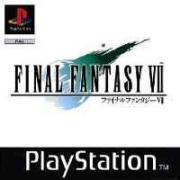
Final Fantasy VII

The town of Makon is under the tight grip of Shin-Ra, the infamous conglomerate.
The Shin-Ra Electric Power Company has been exploiting the life force of the
planet, destroying its precious nature.
Meanwhile, the underground rebel force with a mission, Avalanche, managed to
blow up Makon Furnace No. 1. Their goal is to destroy Shin-Ra and stop their
atrocities. It turned out that Cloud, one of the former Shin-Ra soldiers, helped
the explosion.
Can just a handful of brave soldiers save the life of the planet? Shin-Ra is
much too big an enemy to fight against.
THE FATE OF THE PLANET IS ON THIS BATTLE.

Starting the Game
For First-Time Players
Press the OPEN button on the PlayStation console and open up the CD-ROM holder.
Insert the first disk of the FINAL FANTASY VII CD-ROMs and close the holder.
Turn on the power. The DEMO screen appears, and you are now ready to play. Press
the  button, an a choice of NEW GAME or CONTINUE appears.
Use the up/down direction buttons to move the finger-icon cursor to the NEW GAME
command. Press the  button to execute. You are now starting the game. To save
your adventure, keep a memory card (sold separately) in a card slot. See Page 33
for the data saving procedure.
Continuing the Game from Saved Data
Put the CD-ROM used in your previous game and insert the memory card with the
data in the PlayStation console. Turn on the power. Move from the DEMO screen to
a selection of NEWGAME or CONTINUE. Select CONTINUE.
When the Load screen appears, select the card slot (SLOT 1 or 2) where the
memory card is inserted. Use the up/down direction buttons and press the button
to execute.
On the File Select screen, select the data file to continue your adventure. If
you cannot load the saved data this way, keep the power on, and remove and
re-insert the memory card.
Notes on Changing the Disk During the Game
Final Fantasy VII comes on three CD-ROMs. As you move along in your adventure,
beautiful graphic images will prompt you to "Change disk to Disk No...(CD-ROMs
are numbered 1 through 3)." Press the OPEN button on the PlayStation console to
open the holder and place the specified CD-ROM. Close the holder and press the
button to continue the adventure. The image changes randomly each time this
prompt screen display appears.

Characters
Your character will meet friends or other people who are important in your
adventure. Some of the main characters are introduced below. Beware! Not all of
them are friendly.
Cloud Strife
21 years old. A former soldier of Shin-Ra. He is now a member of the rebel
force, "Avalanche," and is getting involved in battles that would decide the
fate of the planet. There is nothing that his sword would not destroy.
Aerith Gainsborough
22 years old. A beautiful woman with a mysterious atmosphere. She met Cloud when
she was selling flowers in Midgul, and now she plays an important role in
Cloud's adventure. She is better at magic attacks than attacking with weapons.
Tifa Rockheart
22 years old. A beautiful woman with a mysterious atmosphere. She met Cloud when
she was selling flowers in Midgul, and now she plays an important role in
Cloud's adventure. She is better at magic attacks than attacking with weapons.
Barett Wallace
35 years old. The leader of "Avalanche." His overwhelming power and a gun
especially made for him would destroy anything. He lost his wife in the past and
now lives with his little daughter, Marine.
Red XIII
Age unknown. Sex unknown. Red XIII has decidedly red fur and looks threatening,
but has an intelligence level that is well beyond that of humans. The only thing
know about Red XIII is that it attacks the enemy with its claws and fangs. A
very mysterious beast.
Cid Hiwind
32 years old. A pilot who dreams like a boy. In the sky or on the water, no one
steers better than him. He is dreaming of traveling the endless starry sky. A
man always willing to face danger with a lance in his hand. He also has an
amazing knowledge of mechanics.
Sephiroth
He was also a Shin-Ra soldier, and Cloud was under him. Only Shin-Ra's
confidential files know his past. He was one of the best soldiers there. His
long sword has an incredible power, and he is the only one who can use it. No
one knows where he is now.
Yuffie Kisaragi
16 years old. She is a member of a Ninja family with long history, but she does
not care much about it. She decided to join Cloud's party only because she
wanted to get "something." She is a clever, selfish girl, but plays an important
role in battles by using her Ninja tricks and skills.
Cait Sith
Age unknown. No one knows where he is from. The way he talks lets us guess that
he is a male being. He gives life to the fat stuffed animal of Moogle and rides
its back. His attacks during the battles are worth seeing; it is as though
everything in a toy box were coming out. Fortune telling is his hobby, but what
he says is never reliable.
Vincent Valentine
27 years old. A guy with a dark, mysterious atmosphere. It seems that the past
relation with Shin-Ra is making him travel with Cloud and others. It is known
that his slim body possesses some kind of amazing power and abilities.

Controller
This section shows how to use your controller in this game. For more details,
see Page 10 for the Field Operation, Page 12 for the Combat Operation, and Page
18 for the Menu.
Start Button
Field Screen
 Switches the map display on the World Map screen.
Menu Screen
Not used in this game.
Combat Screen
 Pauses/Resumes combat.
Select Button
Field Screen
 Shows the location of character with the finger-icon cursor.
Menu Screen
Not used in this game.
Combat Screen
Turns on/off the Help Window.
L1 Button
Field Screen
 Moves the character left at a 45¡ angle while held down.
 Turns the character left when moving through the World Map.
 Makes the character turn counterclockwise and look around.
 Selects from Hiragana, Katakana, and English alphabets on the Name Input
screen.
Menu Screen
 Selects the character in the same order as the party lineup.
 Jumps the scroll bar up when selecting items or magic.
Combat Screen
 Escapes from the combat if pressed with the R1 button.
 Switches the targets between All and Unit.
L2 Button
Field Screen
 Switches the view points of the World Map.
Menu Screen
Not used in this game.
Combat Screen
Not used in this game.
Direction Buttons
Field Screen
 Moves the characters on the field and on the World Map.
 Selects messages.
 Selects weapons or items you want to buy/sell at shops.
Menu Screen
 Moves the finger-icon cursor and selects commands.
Combat Screen
 Moves the finger-icon cursor and selects commands.
R1 Button
Field Screen
 Moves the character right at a 45¡ angle while held down.
 Turns the character left when moving through the World Map.
 Makes the character turn clockwise and look around.
 Selects from Hiragana, Katakana, and English alphabets on the Name Input
screen.
Menu Screen
 Selects the character in reverse order from the party lineup.
 Jumps the scroll bar down when selecting items or magic.
Combat Screen
 Escapes from the combat if pressed with the L1 button.
 Switches the targets between All and Unit.
R2 Button
Field Screen
Not used in this game.
Menu Screen
Not used in this game.
Combat Screen
Not used in this game.
 Button
Field Screen
Not used in this game.
Menu Screen
 Switches over between the Materia and Combat screens.
Combat Screen
 Removes the Command Window from the screen while held down and shows the
Barrier and Mabarrier Gauges.
 Button
Field Screen
 Makes the characters run on the field.
 Cancels the weapons, armors, or items to buy/sell at shops.
Menu Screen
 Closes the Menu screen.
 Cancels the selected commands.
Combat Screen
 Cancels the selected commands.
 Button
Field Screen
 Opens the Menu screen.
Menu Screen
 Removes the Materias that were attached to the weapons and armors.
Combat Screen
 Selects which character is going to move next.
 Button
Field Screen
 Talks to the character.
 Picks up items or sees inside treasure chests.
 Climbs/Goes down the ladder if pressed in front of it.
 Selects the weapons, armors, or items to buy/sell at shops.
 Switches on the stage effects such as elevators.
 Press L1, L2, R1, R2, Start, and Select buttons all at once to reset.

Field Screen Operation
Your adventure takes place on a 3D field Ð the first time ever in the series.
Final Fantasy VII offers stages that you can move about so freely that you would
think you are really going around the world! You will be surprised to see how
viewing angles change; this surely will remind you of a real movie. Here on the
Field screen, you can move your characters, enter their names, make your
character talk with townspeople, or enjoy events and games.
World Map Screen
As the adventure goes on, you will see the World Map screen shown in the
picture. You will also see a small Game Map at the bottom right corner of the
screen. The  shows the direction that your character is facing and sight range,
the red dot is where the character is now. The  shows where the towns or
villages are. The small map enlarges when the Start or Select button is pressed.
Pressing the same button again removes the map from the screen. Select the same
button once again to see the small map.
Entering Names
You are able to name the characters when your character first meets friends.
Select from Hiragana, Katakana, and English Alphabets at the left bottom of the
screen to give them names with. Use either the L1 or R1 button to select. Select
the letters with the direction buttons and input them using the  button. Select
"Space" to enter a space, and "Delete" to delete unnecessary letters. Select
"Execute" when you are finished, or select "Default" to go back to the default
settings.
Selecting Messages for Dialogue
Final Fantasy VII offers you a change to select response or reaction when your
character is talking with people. Use the up/down direction buttons to select
the response or reaction you wish.
Using Shops and Inns
The world is full of shops and inns of all kinds. You can go for groceries to
prepare for the next adventure or relax at the inn (See Page 8 for operation).
At shops, your character can sell weapons or items. The following is just a few
examples of the shops in the world.
      Inn
      Stay overnight to regain the HP and MP of all the members of the party.
      The damage received during the combat will be completely healed here.
      Different inns have different rates.
      Weapon Shop
      Sells weapons and armors for the characters.
      Item Shop
      Sells various items such as "recovery" and "attack."
      Accessory Shop
      Sells accessories that give your character special effects.
      Materia Shop
      Sells jewelry called Materia that has special effects when attached to a
      weapon. Note that your character cannot buy multiple Materias at once.
      Beginner's Shop
      It is located on the second floor of the Weapon Shop at 7 Slum Street.
      This is not really a shop, but your character can talk to the people there
      and obtain information on this game.

Events & Games
Some of the events require the controller operation. For example, there is a
Barrel Throw and sports events. Pay attention to the messages on the screen
before you start. Although there is no special controller operation, some events
have time limits. If you need to quit, save data and finish (See Page 33 for
Saving) , or press Start button to pause.
Combat Screen Operation
The Combat screen of Final Fantasy VII is described below.
 Battle messages.
 The party member. The  points to the character whose commands are available.
 The enemy character.
 Press the Select button during the combat to see the Help Window. It explains
the commands and shows the names of the enemy monsters.
 Names of the party members, barrier gauge, and the mabarrier gauge. Press the
button to see the gauge that is behind the Command Window. At the beginning of
combat, the barrier and mabarrier gauges are empty. By attaching the "Barrier"
Materia, your character can chant a magic word to reduce the damage in half. The
barrier and mabarrier gauges fill up each time you chant the magic, and their
protective power lasts until the gauge is reduced to 0. Barrier guards from the
physical attacks, and Mabarrier from the magic attacks. It will be a good idea
to chant this when fighting against the Boss-level enemies (See Page 21 for
Materia).
 The commands available during the combat. Depending on how many Materias your
character has, the commands available varies.
 The numbers that pop up from the enemy of the party during the combat shows
damage in white, and HP and MP recovered in green.
 The Status Window to show the status of the party members. From left to right:
current HP left, maximum HP (or the status that have changed), current MP left,
and the Limit and Time gauges.
 The gauges to show each character's current HP and MP remaining. The gauge is
blue when it is full, but it will turn red as it decreases.
Combat Formation
The enemy appears in the regular combat formation as well as in other formations
described below. Note that the damage will be doubled when attacking the enemy
or being attacked from behind.
[Initial Attack]
Enter the commands before you get attacked! This formation really helps your
character and other party members.
[Back Attack]
When you are attacked from behind, the front and rear rows switch. Moreover,
this always lets the enemy make an initial attack. This formation, needless to
say, is a bad idea for your character and the friendly force.
[Side Attack]
Attack the enemy from both sides. You cannot use the CHANGE command to rearrange
the formation, but this formation works well.
[Ambush!]
This formation is just opposite of the Side Attack. When this happens, your
party is exposed to the enemy's initial attack and cannot even run. You can
neither attack the enemy with magic nor change the formation with the CHANGE
command. This formation, therefore, is quite disadvantageous to your force.

ATB (Active Time Battle)
Final Fantasy VII employs an ATB (Active Time Battle) system with a flow of
time. The character with a full Time gauge gets to select commands first. Pay
attention to how the enemy makes their move and how the situations change, and
select appropriate commands.
Battle Commands
The following commands in the Command Window vary with the flow of the game and
each character.
[FIGHT]
Attack the enemy with the weapon your character has. Your character can even
attack the friendly force if desired. The same applies for the MAGIC command.
[LIMIT]
The Limit gauge starts to fill up when attacked by the enemy. When full, the
gauge begins to flicker and reaches a condition "Limit Break." When this occurs,
the FIGHT command changes to the LIMIT command. With this command, the
character's attack with their own Limit skill. If the combat is over without
using the Limit skill, it will be available in the next combat. In this case,
the command remains LIMIT. Note that the more damage your character receives,
the faster the gauge fills up (See Page 28 for Limit).
[MAGIC]
The commands displayed in the window when attaching the Magic Materia onto the
weapons and armors (See Page 21 for Materia). Select the magic to use after
selecting the command, and decide whom it is going to be used against. For
instance, select the enemy when using the Attack Magic, and the member of the
party when using the Recovery Magic. The amount of MP reduced will not be
different between the Unit Magic and the All Magic, which uses the "Select All"
Materia (a red arrow appears after the name of the All Magic). The magic that is
not available is displayed in gray.
[ITEM]
Use the combat items which allow your character to attack or recover. After
selecting an item, decide whom it is going to be used against. Select the enemy
if using the Attack item, and select a friend when using the Recovery item (See
Page 19 for Item).
[CHANGE]
The command that appears when you press left at the left side of the Battle
Command Window. This command allows you to switch the front and rear rows of the
combat formation. Characters located in the rear will receive less damage, but
their attack power will be reduced. Characters in the front row will have the
opposite advantage and disadvantage. Note that this rearranged formation will be
canceled in the next combat (See Page 27 if you wish to keep the rearranged
formation).
[DEFENSE]
The command that appears when you press right at the right side of the Battle
Command Window. This command reduces the damage received from the enemy in half.

[RETREAT]
The party will run away from the combat if you press the L1 and R1 buttons at
the same time. Note that some enemies or formations will not allow your party to
retreat.
Other Commands
As the adventure goes on, your character will obtain a number of Materias. Some
of which will add commands that can be used during the combat. They are, for
example, Summon, Enemy Skill, and Steal to name but a few. These commands are
available for the characters with these particular Materias attached (See Page
21 for Materia).
Ending the Battle
The combat lasts until your party wins or until all of the members of either
group retreat. When your party wins the battle, your party will obtain money
(currency: guill), items, EXP (Experience), and AP (Ability Points) that will
grow Materias (See Page 21 for Materia). The amount of money, items, EXP, and AP
that your party obtains will vary with the kind and number of the enemy.
Game Over
The game is over when all of the party members are incapable of fighting or
petrified. Press the [circle] button if you wish to play again. The screen will
ask whether you wish to play a NEW GAME or to CONTINUE. Select NEW GAME if you
do not have any saved data, and select CONTINUE if you do (See Page 5 for
Loading, Page 33 for Saving).
Status Change During the Battle
The status of the attacked character will change as seen below. Most of them can
be cured by "Esna" Magic or "Almighty" medicine. However, a status such as
Critical, Can't Fight, Anger, and Sadness need particular magic or an item to
heal. All of the changes in status can be recovered by using the inns or tents.
The following are just a few of the abnormal statuses.
      NameSymptoms & Recovery Method

      SleepInability to enter any commands until the character wakes up /
      Almighty Medicine or attack from friend or enemy

      PoisonReduction in the character's HP each turn / Detox or Almighty
      Medicine, or Poisona Magic

      AngerDoubled damage received, faster filling up of the Limit gauge, and
      reduction in Hit Rate / Tranquilizer

      SadnessReduction in inflicting damage, slower filling up of the Limit
      gauge / Stimulant

      PetrifyingInability to enter any commands / Golden Needle, Almighty
      Medicine, and Esna Magic

      ConfusionAttacking both enemy and friends / Almighty Medicine and Esna
      Magic

      SilenceInability to chant magic / Echo Smoke, Almighty Medicine and Esna
      Magic

      ParalysisInability to enter any commands / Almighty Medicine and Esna
Magic

      DarknessReduction in Hit Rate / Eye Drops, Almighty Medicine, and Esna
      Magic

      FrogTransformation into a frog, reduction in defense and offense power,
      inability to use any magic other than Toad Magic / Kiss of a Lady and Toad
      Magic

      MinimumMinimization of the body and reduction in defense and offense power
      / Magic Hammer and Minimum Magic

      CriticalA dangerous situation with a little HP left / Potion-related item
      or Keal-related Magic

      Can't FightInability to do anything with 0 HP / Phoenix Tail and Raise
      Magic

      Slow PetrifyingGradual petrifying on each turn / Golden Needle, Almighty
      Medicine, and Esna Magic

      Death SentenceCounting down the number and inability to fight when 0 /
      Finishing the battle within the count

      BerserkInability to enter commands and repeated physical attack on the
      enemy / Almighty Medicine and Esna Magic


Menu Screen
Press the  button on the Field screen to see the Menu screen. The functions of
the Menu screen are:
 Shows the current status of the party members: from left to right, the
character's face, name, level, current and maximum HP, and current and maximum
MP. Also there are gauges to show how soon you can reach the next level or how
soon your character will be able to use the Limit skill.
 Shows the commands you can use on the Menu screen. Note that the PHS and SAVE
commands are not available, depending on where the party is. You can't use the
PHS and MATERIA commands unless you get items named "PHS" or "MATERIA" (See Page
19 for Item, Page 20 for Magic, Page 21 for Materia, Page 24 for Gear Up, Page
25 for Status, Page 27 for Formation, Page 28 for Limit, Page 29 for Config,
Page 32 for PHS, and Page 33 for Save).
 Shows the total game time elapsed and the money owned by the party at present
(currency unit: guill).
 Shows the name of place where the party is currently located.
 "Materia" and "PHS" commands become available as the story goes on.

Menu Screen Commands
There are 10 commands that you can use on the Menu screen. Their meanings and
functions are described below. To use these commands, select the command with
the up/down direction buttons and execute with the  button.
Item
Choose this command to use items such as "Potion" and "Phoenix Tail" to get
treatment and recover. The screen shown on the right will appear when the ITEM
command is selected. To select commands other than USE, press the  button.
[USE]
This command allows the use of the item that your character already has. After
selecting the item, decide whom you should use it against. Items that your
character can't use are shown in gray. The L1 and R1 buttons scroll the item
screen.
[ARRANGE]
Use this command to sort out the items into the following seven categories.
      SelfIn any way you like
      ManyIn descending order by quantity
      FewIn ascending order by quantity
      MainIn the order of items usable on the Menu screen
      BattleIn the order of items usable in combat
      TypeBy types of items such as weapon or armor
      NameIn the order of the Japanese alphabet

[KEY ITEM]
Shows the items your character has that are important in the adventure.
Magic
On the Menu screen, your character can chant magic words to "recover" or
"treat", cast a "Summoning Spell" on someone, or check the enemy skill. The
screen shown on the left will appear when you select this command. Press either
the L1 or R1 button and you can call other party members without returning to
the Menu screen. The same applies for the commands such as MATERIA, GEAR UP,
STATUS and LIMIT.
[MAGIC]
This command allows your character to use magic. After selecting the magic word
to chant, decide on whom to cast the spell. Magic that your character can use is
in white; the rest appear in gray. To chant the magic, you need to have Magic
Materia attached to your character's weapon or armor (See Page 23 for Materia).
If you press either the L1 or R1 button as you select magic, the scroll bar will
jump, screen by screen.
[SUMMON]
This command shows the name of the magic your character can use and its effects.
Your character needs to have Magic Materia attached to the weapon or armor to
use this magic (See Page23 for Magic Materia).
[ENEMY SKILL]
This command shows the skills that your character has learned from the enemy.
Your character needs to have Enemy Skill Materia attached to the weapon or armor
to learn these skills.
 Additional abilities:
When your character gains additional abilities by attaching a special Materia
such as "Select All," their effect will be displayed.
Materia
Attach a jewel known as "Materia" onto a hole on a weapon or an armor to obtain
various abilities. Select the MATERIA command if you want to attach Materia or
to know its effect. Move the finger-icon cursor to the hole on a weapon or an
armor, and press the  button to attach. The Materias shown are those not used by
others; so select any Materia and simply press the [circle] button. To remove
the Materia, select the hole where it is attached and press the  button.

 Shows the number of holes on the weapons or armors you character is using.
 Describes the special effect the Materia will have when attached on those
holes.
 Shows the level of the Materia in the hole, AP (ability point), AP until the
next level, and list of abilities and special effects your character can learn.
 Move the finger-icon cursor to CHECK and press the  button, then you will be
able to find out types of commands and magic which your character can use in a
battle as a result of Materia effect.
 Move the finger-icon cursor to the hole on the Materia and press the  button.
The Materia your character now has (but yet to be attached to the weapons) and
its effect when attached will be shown.
AP (ability point)
Shows your character's current ability point. AP can be obtained when your
character win a battle. When AP reaches a certain level, the level of that
Materia becomes higher and the ability effect powers up. No AP for the Materia
that is not attached to a weapon or an armor. Once your character powers up the
Materia, other characters can use it as their own. Except for a few cases, most
Materias reach the Master Level, shown with five stars.
Ability List
Shows the ability your character obtains from the Materia. If the name is shown
in white, it is the ability your character can use now. The ability shown in
gray cannot be used.
Gear-Up Effect
By attaching certain Materias, your character's status such as power, magic
power, max HP or max MP will change. When their levels become higher, they will
be shown in yellow; when the levels become lower, they are shown in red.
 There are five kinds of Materia
There are several different kinds of Materia in the game. They can be classified
roughly into the following five categories, depending on the ability they
create.
Independent Materia
Color - purple. In general, these Materias increase the character's status such
as maximum HP or power.
Support Materia
Color - blue. They work only when used with other Materias like "Select All" or
"HP Magic."
When attaching this Materia on a weapon or an armor, make sure to use the linked
holes. By attaching a Command Materia or a Magic Materia in one of the holes,
you'll notice that the special ability of each Materia increases, as they are
powered up by the Support Materia.
Command Materia
Color - yellow. Includes Materias such as "Steal" or "Throw" which your
character can use in combat.
Magic Materia
Color - green. These Materias allow your character to start various attack magic
or chant "Recovery Magic."
Summoning Magic Materia
Color - red. By chanting "Summoning Magic" during a battle, you can summon a
Magic Beast. It sure will be a great help to you.
Gear Up
Use this command to equip each character with weapons, armor or accessories.
These goodies are nothing unless they are given to each character on this
screen.
[WEAPON]
The affects the attack power and the Hit Rate (See Page 25 for Status). When you
want to change your character's weapon, select the weapon currently in use, and
press the  button. If there are other weapons that your character can use,
weapons you can trade will be displayed in the lower right hand corner. Select
the weapon you wish to use, and press the  button. In this case, two rows of
numbers appear at the bottom of the screen to show the status change. The figure
on the left is the current weapon; the figure on the right is the new weapon.
Figures in yellow mean an increase, while those in red mean a decrease in
status. If you want to disarm the weapon currently in use, select the weapon and
press the  button.
[ARMOR]
The armor affects the defense power, avoidance rate, magic defense, and magic
avoidance rate. How to use the armor and the screen displays are basically the
same as the weapon.
      Materia Hole
      This indicates the number of Materia holes on the weapon or armor (See
      Page 21 for Materia). Use the linked holes, by combining supporting
      Materia with other kinds of Materia, in order to power up the Ability
      (special effects).
      Materia Growth
      This shows how your Materia will grow. The growth rate differs with the
      weapon or the armor. Under "Regular," there is no change in the speed of
      growth; under "Double" you can double the point of AP your character will
      get. Note that there are weapons and armors which do not grow Materia.
      Accessory
      Accessories give you character special power when attached. Some of them
      change the status. How to use accessories is basically the same as how to
      use the weapon.

Status
It indicates the character's current status. Press the  button to move to the
screen showing the current Attributes.
 Shows the current status of the part members: from left to right, character's
face, name, level, current and maximum HP, current and maximum MP and the total
experience points. Also there are gauges which show how soon you can move on to
the next level or how soon your character will be able to use the Limit skill
(See Page 28 for Limit skill).
 Shows the current status of the party members: from top to bottom, power,
speed, strength, magic, mental power, luck, attack power, hit rate, defense
power, avoidance rate, magic attack, magic defense, and magic avoidance rate.
 Shows the window of combat commands that a particular character can use (See
Page 14 for Combat Commands).
 Shows the name of the weapons and the number of holes on them that are equipped
with the characters. It also shows the color of Materia and the names of the
accessories attached to the characters (See Page 21 for Materia).
 Attributes
Your character will obtain special effects called "Attribute" through equipping
a weapon, an armor or accessory, in addition to the change in the
offense/defense power. There are nine Attributes, which are, Flame, Ice,
Thunder, Earth, Poison, Gravity, Water, Wind, and Sacredness.
      [Attack]
      When your character attacks the enemy's weakness Attribute, you can
      inflict a twice-larger damage. On the other hand, if the enemy is
      resistant to that particular Attribute, your character's attack will be
      reduced by half, will have no effects, or can be absorbed by the enemy.
            Effect of attacks by each attribute
            FireFlame Effect. Effective against water and animal enemies
            IceWater Effect. Weak against cold, effective against fire enemies
            ThunderElectric Effect. Effective against enemies who are made of
            machinery
            EarthAttack with the power of the earth. Not effective against
            flying enemies
            PoisonMakes a situation poisonous. Not effective against poisonous
            species
            GravityAttack using the power of gravity
            WaterCall upon the blessing of water and earth. Effective against
            fire enemies
            WindCall upon the wind and atmosphere. Effective against flying
            enemies
            SacrednessCall upon the power of the stars. Effective against
            enemies of darkness

      [Half]
      The damage received will be cur in half on a particular Attribute.
      [No Effect]
      You'll receive no damage when the enemy attacks your character on this
      particular Attribute.
      [Absorb]
      When attacked on a particular Attribute, your character can absorb the
      damage into your character's own HP.

 Status
Some weapons and armors upset the opponent's status when attacking it, while
others have special defense effects. If the weapons and armors your character
has possess the following effects, the following Attributes will be displayed in
white.
      Offense Ð The character not only damages the enemy but also upsets its
      Attribute status, such as "Poison" and "Sleep," while attacking.
      Defense Ð The character can defend the status of particular Attributes,
      such as "Poison" and "Sleep," from the enemy's attack.

Positioning
Use the POSITION command to change the character's position or to move them
between the front and the rear rows. Select the character and choose the site to
move to (or the characters to switch the location with). To move a character
between the front and rear rows, put the finger-icon cursor on a character and
press the  button twice.
Front Row
You'll have smaller defense power but greater offense power. The party's attack
and defense power against magic, however, does not change.
Rear Row
Your character has smaller offense power but greater defense power. The party's
attack and defense power against magic, however, does not change.
Status Attributes
      Death Anger Controlled
      Sleep Silence Invincible
      Sadness Slowness Darkness
      Confusion Frog Regeneration
      Haste Slow Petrifying Mabarrier
      Stop Petrifying Death Sentence
      Minimum Barrier Berserk
      Critical Reflection Paralysis
      Poison Megabarrier

Limit
Use this command to select Limit skill during the Limit Break in a combat or to
know the effect of the Limit skill selected. A Limit gauge will be provided at
the top right corner of the screen until your character uses the Limit during
the next Limit Break.
Your character can only use the Level 1 Limit skill in the beginning, but will
learn the higher-level Limit skills through experiencing more battles in the
game.
To select the skill, move the finger-icon cursor onto SET on the screen and
press the  button. Then select BREAK LEVEL written in white at the bottom of the
screen. You will be asked if you want to change the BREAK LEVEL. Select YES if
you wish to change. Select NO if not. If you select YES, the accumulated Limit
gauge will go down to zero.
If you want to know the effect of the Limit skill, move the finger-icon cursor
to CHECK on the screen and press the  button. Select the level of the skill you
wish to check, then select the name of the skill.
 Watch out for Anger and Sadness statuses
When the status becomes Anger, the Limit gauge will accumulate faster. In the
Sadness status, it will be opposite (See Page 17 for details). In the Anger
status, the color of the gauge will be red; in the Sadness status, the color of
the gauge will be blue.
Config
This command allows you to change the game system to your preference. Use the
direction buttons to operate.
[WINDOW COLOR]
You can change the colors at the four corners of the background by adjusting
red, green, and blue. Press the  button and move the finger-icon cursor to the
right window. Select the area you want to change color with the direction
buttons. Then press the  button; you can now make adjustments with the selected
color. Use the left / right direction buttons to change the color and press the
button. When you have changed the colors of all four corners, press the  button
again.
[SOUND]
You can select between [monaural] and [stereo].
[CONTROLLER]
You can choose between "Regular" and "Custom." Press the  button to select
"Custom." Press the Start button. A cursor appears at the left edge on a button
in the window. Move the finger-icon cursor to the button you wish to change,
using the up / down direction buttons. Press a button other than what has been
selected. When you have customized the buttons, press either the right or left
direction button (See Page 8 for default operation).
[CURSOR]
The computer keeps the last cursor position even after the window is closed.
[ATB]
Three time speeds are available for combat scenes.

      [ACTIVE]
      For advanced players. Time keeps ticking even when you're selecting the
      commands, magic or items.
      [RECOMMENDED]
      For intermediate-level players. Time stops when magic or items are
      activated.
      [WAIT]
      For beginners. Time stops when you're selecting the magic or items.

[BATTLE SPEED]
Change the time speed during combat.
[BATTLE MESSAGE]
Change the message speed during combat.
[FIELD MESSAGE]
Change the message speed on the Field screen.
[CAMERA ANGLE]
Selects the way the view points move during combat.
      Auto
      The camera angle, or the viewing angle, changes rapidly as in a real
      battle.
      Fixed
      The camera angle stays the same from the time your party first meets the
      enemy.

[ORDER OF MAGIC]
Organizes the list of the six kinds of magic displayed in the window when
selecting the magic during the combat.
PHS (Party Hensei System)
When there are more than three people in the party, you need to choose two
people other than Cloud to organize the party. Except for a few cases, you need
to have an item called PHS, which you will be obtaining as the adventure goes
on. Changes of the members can only be done in the World Map screen and at some
Save Points. Follow the instructions below to change the members.
Select a character to be discharged from the party. Move the finger-icon cursor
onto the character and press the  button (press the same button again to see the
detailed information on the character. Note that this character needs to be
someone other than Cloud).
Move the finger-icon cursor onto the reserved character that you want in the
party, and press the  button to select (press this button again to obtain
detailed information on this character).
Save
Select this command at Save Point to save the data of the game so far. Save
command is always available on the World Map; open the Menu screen by pressing
the  button.
To save on the Field screen, move your character to the Save Point. The window
that explains how to save will automatically open. Close this window by pressing
the  button and open the Menu screen with the  button. Using the direction
buttons, select the Save command and press the  button. Move the finger-icon
cursor with the up / down direction buttons and select the memory card slot
where the card is in.
Note that a new memory card needs to be formatted. When saving onto a new memory
card, you will be asked if you wish to format it. Follow the instructions on the
screen and format it. Move the finger-icon cursor with the up / down direction
buttons and select the memory card slot where the card is in.
Finally, select the file to keep the saved data by pressing the up / down
buttons. Select with the  button. You will see only three save files on the
screen. Scroll the screen with the down direction button to see other ones. One
memory card can hold fifteen save files, but you will be able to save less files
if the memory card contains saved data of other games.

Vehicles & Machines in the Game
Your character will be able to ride many kinds of vehicles as the adventure
progresses. This will allow your character to go to the places where he could
not go on foot. Following is just a few examples of the vehicles that your
character can use.
 Chocobo
Your character is able to catch Chocobo in certain regions of the World Map. If
your character has a Materia called Call Chocobo. By riding this, your character
can go anywhere other than in the river, sea, and mountains and will not meet
any enemies other than the special ones. Note that your character cannot ride on
the same Chocobo all the time. Your character will dismount if you press the
button, and Chocobo will run away soon after. Catch Chocobo again if you want
your character to ride it again. The controller operation while riding a Chocobo
is the same as when walking except for the  button.
 High-Wind (Airship)
A huge flying vehicle. This is the fastest vehicle in this game. It is able to
go virtually anywhere on the World Map except for mountains. To use the
High-Wind, press the  button when the character is near it. Press the same
button again to start the vehicle. While it is going forward, press the left
direction button and the L1 button together to make a quick left turn and the
right direction button and the R1 button to make a quick right turn. The up
direction button lets the vehicle go higher, and the down direction button
lowers the vehicle. Press the  button to land. Press the  button to see the
Bridge screen.
[end of manual]